Guides
Facebook business page: how to set one up in 2026
Try Steadybeat free for 14 days, no card needed
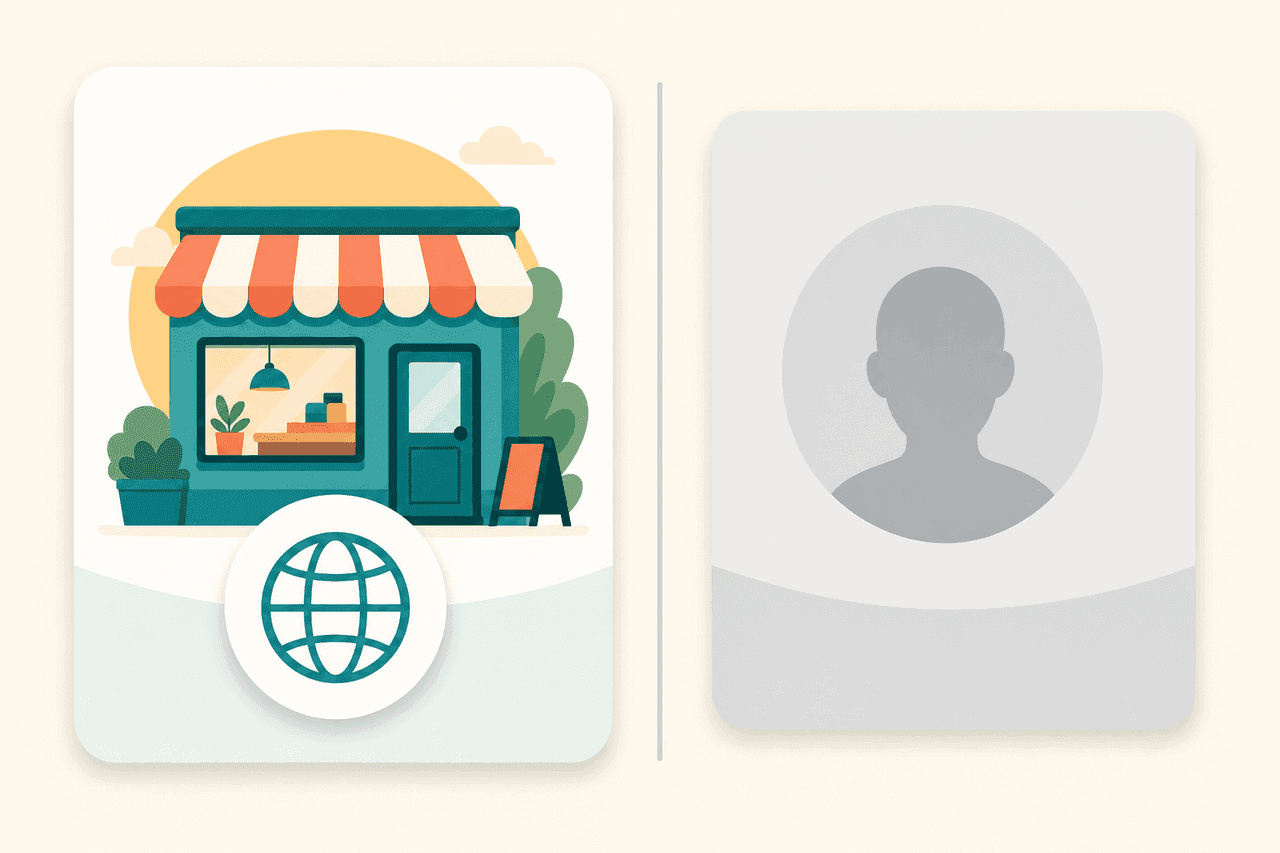
What people call a Facebook business account is, in Meta's own terms, a Facebook Page. There's no separate business login you sign up for with an email address. You create the Page from your personal profile, and it costs nothing.
The steps below follow the order you'll run into them: creating the Page, what to fill in first, admin access, Meta Business Suite and the business portfolio, then connecting Instagram. Button names follow Meta's English help center.
What a Facebook business page is and what it costs
A Page is your business's public home on Facebook. It has its own name, photos, contact details and followers, and everything you post appears under the Page's name. People manage it through their personal profiles: one or more of them get access to the Page and act on its behalf.
It's free. Meta calls Pages "a free product", and Meta Business Suite is also free on desktop and in the mobile app. Ads are a separate matter, and you don't need them to create or run a Page.
According to Meta, anyone with a Facebook account can create a Page or help manage one. The setup steps Meta documents don't ask for a business registration number or any other proof that you're a company.
How to create a Facebook Page step by step
Here's Meta's desktop flow:
- Log into Facebook, then click Pages on the left.
- Click Create Page.
- Select Public Page, then click Next.
- Click Get Started.
- Add your Page name and category.
- Add an optional bio and click Create Page.
- Add contact info, location and hours, and click Next.
- Add profile and cover photos, edit the action button and click Next.
- Connect your WhatsApp to your Page, or click Skip.
- Invite friends to connect with your Page, then click Next.
- Select your notification settings and click Done.
That's it, the Page exists. The bio and WhatsApp are optional, and you can add or change the basic info, photos and action button later.
Think about timing before you invite friends, though. An empty Page doesn't give anyone a reason to follow it, so a couple of posts first make a better first impression.
What to fill in first
Meta's guide to setting up a business Page covers the same basics customers look for. Fill them in before you tell anyone about the Page:
- Category. Pick the main category that describes what you do. Meta says the category you choose unlocks features suited to your business. You can add up to three more categories to help customers find you.
- Description. Meta's advice is to keep it brief, 1–2 sentences. Say what you do and where, for example "Haircuts and colour in central Leeds".
- Contact info. Phone number, website and email address. Visitors can see these.
- Location and hours. If customers come to you, add your address and opening hours so they know where and when.
- Photos. A profile photo that represents the business, usually your logo. The cover photo can show your place, a product or the team.
Keep the Page name the same as your business name. People will recognise it in search, and the same name comes back later in your business portfolio.
Can you create a business page without a personal account?
No. Meta's help center says plainly that a personal profile is required to create a Page or group. There's no email-only business account you can register instead.
Your profile and the Page still stay apart. Meta says information from your personal profile won't appear on your Page unless you share it there, and that Facebook treats your profile and Page as separate. You don't have to post anything on your profile. It can be nothing more than the key you use to manage the Page.
The workaround everyone thinks of is a second profile under the business name, so your own stays out of it. Don't.
Don't make a profile for your business
Meta's Terms of Service say you must use the same name you use in everyday life, provide accurate information about yourself, and create only one account (your own). The terms also say Meta may permanently disable an account for clear, serious or repeated breaches. If that profile is the Page's only admin, your access to the Page goes with it.
Admins and access: who gets what
Don't share your password. Meta's terms rule it out, and it's a bad idea anyway: you can't tell who did what, and you can't cut off one person without changing the login for everyone. Every employee or helper gets their own access through their own profile.
When the Page sits in a business portfolio, there are two levels. Full access lets someone manage all Page settings. Partial access lets them create content and interact as the Page. Here's how you assign it in Meta Business Suite:
- Go to Meta Business Suite on a desktop computer.
- Click Settings.
- Below Profiles, click Pages and select the Page.
- Click Assign people and choose the person.
- Pick the level: partial access (business tools only), partial access (business tools and Facebook), or full access.
- Click Assign.
Meta notes that if your Page isn't in a business portfolio, the access levels are different. The principle doesn't change: everyone uses their own login.
Three practical rules:
- Give people only the level they need for their work. Meta says the same.
- Keep full access with two people you trust. If the only admin loses their profile, nobody's left to run the Page.
- Turn on two-factor authentication. Meta offers it for the business portfolio as well.
When someone leaves, you remove their access and that's the end of it. The Page isn't tied to any one person's login.
Meta Business Suite and the business portfolio
These two names get mixed up all the time, so here's the difference:
| Name | What it is | Cost |
|---|---|---|
| Facebook Page | Your business's public page on Facebook | Free |
| Business portfolio | Holds your Pages, Instagram accounts, ad accounts and the people who can access them | Free |
| Meta Business Suite | The tool you use to manage the portfolio and its Pages | Free |
Meta says that to use Business Suite, your business needs a business portfolio. And when you add a Page to your portfolio, your business owns that Page. That matters more than it sounds: the Page belongs to the company, not to whoever happened to set it up.
Older guides talk about Business Manager. Meta's help pages now say business portfolio. Business Suite, on the other hand, is the tool you use the portfolio through. You'll sometimes see it described as Business Manager's new name, and that's wrong.
To create a portfolio:
- Go to business.facebook.com and log in with your Facebook profile.
- Click the dropdown menu below Home in the top left.
- Click Create a business portfolio.
- Enter a name. Meta says it should match your business's public name because it'll be visible across Meta.
- Enter your first and last name and your business email, then click Create.
You can personally create up to two business portfolios. A small business needs one.
To add an existing Page to it, open Business Suite and go to Settings, then Pages under Accounts, click + Add and choose Add an existing Facebook Page. The same menu has Create a new Facebook Page if you don't have one yet. Anyone who had access to the Page before you added it can still manage it, so check who's on the list afterwards.
Connecting Instagram to your Page
Most businesses want Instagram in the same setup. Meta lists three requirements:
- A professional Instagram account. If yours is personal, you'll be prompted to switch during linking.
- Full control of the Facebook Page.
- The Instagram account in the same business portfolio as the Page. An Instagram account can only be in one portfolio at a time.
In the Instagram app it goes like this:
- Tap Profile or your profile picture in the bottom right, then select Edit profile.
- With a business account, scroll to Public business information.
- Tap Page, then Connect or create.
- Tap Continue, then Login to Facebook and Continue.
- Choose the Page you'd like to connect to and tap Connect.
One thing worth knowing up front. Once the two are connected, anyone with access to either the Page or the Instagram account can manage both. Review who has access before you link them.
Publishing once the Page is live
Everything you post on the Page appears under the Page's name, not yours. Publishing tools work the same way. They ask for permission to post to the Page and don't need access to your personal profile.
Steadybeat, our own product, connects to a Page exactly like that. You authorize it to publish to a Page you manage, and it posts there in the Page's name. Your profile stays in the background as an admin permission, just like on Facebook itself. If you're wondering what the other platforms need before your first post, we covered that separately: What each social platform requires before you can post.
Post to your new Page without mixing up your own feed
Once the Facebook Page is up, Steadybeat handles posting there and to your other channels in one go. Try it free for 14 days
Sources
- Meta: Create a Facebook Page
- Meta: Set up your Facebook business Page
- Meta: How to Represent Your Business on Facebook with Pages, Profiles and Groups
- Meta: How to create a Facebook Page for your business
- Meta: About Business Portfolios
- Meta: How Meta Business Suite works
- Meta: Create a Business Portfolio in Meta Business Suite
- Meta: Add a Facebook Page to your business portfolio
- Meta: How do I give someone access to my Facebook Page?
- Meta: About Business Portfolio and Business Asset Permissions in Meta Business Suite
- Meta: Add People to a Business Portfolio and Assign a Business Asset
- Meta: Connect or disconnect your professional Instagram account and a Facebook Page
- Meta Terms of Service
Read also
What each platform needs before you can post through Steadybeat
A platform-by-platform checklist of the kind of account you need ready. Facebook and LinkedIn require a page; most others need nothing special.
Four ways to publish on social media - and how to pick yours
Publish now, schedule, plan a week at a time, or let autopilot handle it. We walk through the differences and use cases from a small business owner's view.
What actually happens when you click Connect? How Steadybeat reaches your accounts without your password
OAuth explained in plain language: why connecting your social media accounts to Steadybeat never involves your password, and how to cut the connection at any time.